
 Welcome bonusUp to 2 000 AUD + 100 FS
 Welcome bonusUp to 2 000 AUD + 100 FS


Instant
Quick & easy deposits

Up to 60 mins
Avg time for processing withdrawals

24/7
Customer Support

58,687 AUD
Customer Support
Casino



Live Casino

Promotions
Tournament
Golden Entry
Prize Pool
600 AUD real money + 60 FS
Promo
Install the App
What’s offered
20 no-deposit Free Spins

Level system
- Lvl.1/10Crystal0 - 30 CP
Your success starts here! Collect CP, unlock new levels, and get cool benefits for a bright game.
- Lvl.2/10Quartz30 - 110 CP
Just a little more and you can get:
- 5 FS
- 10 FS
- 15 FS
- 16 FS
- 17 FS
- 18 FS
- 19 FS


Lucky Hills Casino App: Mobile Access and PWA Installation Guide
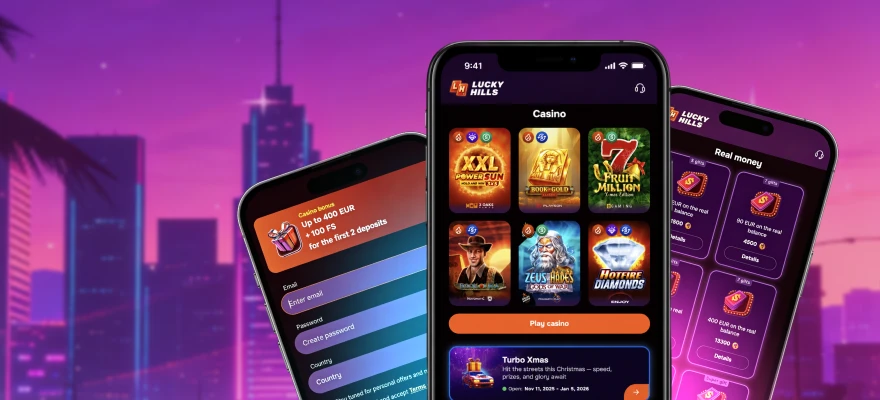
Looking for a Lucky Hills casino app download? The answer is different from what you might expect. We run as a progressive web app (PWA), not a native application. You access the Lucky Hills app through your mobile browser and add it to your home screen. No file downloads and no app store is involved. Both Android and iOS are supported.
How the Lucky Hills App Works on Android and iOS
Our mobile experience runs through your phone’s browser rather than a dedicated native application. A PWA behaves like an app once you add it to your home screen, but it lives on the web. Your browser handles the connection, so no installation file passes through your device.
Android and iOS both support this access route. Chrome is the recommended browser on Android for the home-screen process. On iOS, Apple restricts PWA installation to Safari, so that is the correct browser to use. Choosing the wrong browser on either platform means the installation option may not appear.
Once the shortcut sits on your home screen, tapping it opens the Lucky Hills site in a focused view. Browser navigation bars are hidden. The underlying technology is a web page served through your browser engine, not a native app binary. No separate app-store account or device permission is needed just to open it.
No APK Exists and No App Store Listing Is Available
We do not have a listing in the Apple App Store or Google Play. Our format is a PWA, distributed directly through our website. No official Lucky Hills entry exists in either store. Any APK file claiming to be our app is unofficial.
Sideloading an APK — installing an Android package file from outside Google Play — carries real security risk. Unofficial files can contain malware or outdated code with no connection to our platform. The only safe route is through our website, where the PWA loads directly in your browser.
A PWA does not require app-store approval to reach you. We push updates through the web. You always receive the current version when you open the browser, with no store review cycle between a change on our end and what you see on your screen.
Installing the Lucky Hills PWA: Android and iOS Steps
The process takes under a minute on either platform. Follow the steps for your device.
Android (Chrome)
- Open Chrome on your Android phone.
- Go to the Lucky Hills website.
- Tap the three-dot menu in the top-right corner of Chrome.
- Select Install App from the menu.
- Confirm the install when prompted.
The Lucky Hills icon appears on your home screen immediately after confirmation.
iOS (Safari)
- Open Safari on your iPhone or iPad.
- Go to the Lucky Hills website.
- Tap the Share button at the bottom of the screen.
- Select Add to Home Screen from the share sheet.
- Tap Add in the top-right corner to confirm.
The shortcut appears on your home screen. Tapping it opens the site without the Safari address bar visible.
Notification Permission and Keeping the App Current
When you first open the Lucky Hills PWA, your browser may ask whether you want to receive push notifications. We use push notifications to send bonus alerts. Accepting gives you timely access to those updates. Declining means you will not receive those alerts. It does not affect your ability to use the app or log in.
That is the only permission prompt tied to a specific feature. You do not need to grant camera, location or contacts access to use the PWA.
Updates work differently from a native app. Because the PWA runs through your browser, our changes reach you automatically the next time you open the shortcut. No app store visit or manual update tap is needed.
If something looks out of date or a page fails to load correctly, work through these steps:
- Close the shortcut fully and reopen it to trigger a fresh load.
- Open your browser settings and clear the cache for the Lucky Hills site if the issue continues.
- Remove the home-screen shortcut and repeat the installation steps to get a clean version.
- Contact our live chat team if the problem continues after reinstalling.
Our live chat runs 24/7. Support is available at any hour for technical issues a reinstall does not resolve.
Signing In and Verifying Your Account Through the App
Tapping the Lucky Hills shortcut on your home screen takes you directly to the login page. Enter your registered email address and password to access your account. Your browser may offer to save your credentials — accepting that saves you from typing them each visit.
If your session has expired, you will see the login screen again rather than your account dashboard. This is normal behaviour for a web-based session. Sign in again to continue.
A forgotten password can be reset through the login page using your registered email address. Follow the reset link sent to your inbox, then return to the shortcut and sign in with your new credentials.
If access is blocked and a password reset does not resolve it, contact our 24/7 live chat team. VIP members receive priority personalised care around the clock.
For account verification, go to Profile, then the Verification tab. Upload a valid identity document: an ID card, passport, residence permit or driver’s licence. Upload both sides if your document has two sides. A live selfie with a head rotation is also required. Your document must be valid for at least one month from submission, and all information must be clearly visible in your photo.
We hold a Curaçao licence, number OGL/2024/923/0383. For any concern that support cannot resolve, that licence reference is the relevant regulatory contact point.
Lucky Hills Casino App Review: What the PWA Delivers in Practice
This Lucky Hills casino app review covers what the PWA format actually means for day-to-day use, not just installation. The luckyhills app gives you one-time authorisation on setup, fast loading when you open the shortcut, quick access to bonuses and games, and push notifications for bonus alerts when you accept that permission.
Compared with a native app, the PWA requires no storage for an application package. Updates reach you automatically rather than queuing in an app store. The trade-off is that your session is browser-based, so closing the shortcut ends the active session. Saved credentials in your browser reduce the friction of signing back in.
For pokies specifically, the luckyhills best pokies app experience runs entirely through the browser engine. Game loading depends on your connection rather than a locally installed file. On a stable mobile connection, that distinction is rarely noticeable in practice.
Frequently Asked Questions
Does Lucky Hills have a dedicated app in the App Store or Google Play?
No. We are not listed in either store. Our mobile access runs through a PWA. Add it to your home screen directly from our website — using Chrome on Android or Safari on iOS.
Can I use the Lucky Hills PWA on a tablet as well as a phone?
Yes. Both Android and iOS are supported platforms. Follow the same browser-based installation steps on a tablet: Chrome on Android tablets, Safari on iPads.
Will adding Lucky Hills to my home screen use storage on my device?
The shortcut adds a small icon to your home screen rather than installing a full application package. Storage impact is minimal compared with a native app download.
Do I need to create a new account to use the mobile version?
No. Your existing account works through the PWA. Open the shortcut, enter your usual login details, and your account, balance and history are all accessible.
What happens to my session if I close the Lucky Hills shortcut?
Closing the shortcut ends your active browser session. When you reopen it, you will see the login screen. Saved browser credentials speed up signing back in.
Who do I contact if the PWA shortcut stops working after a phone update?
Start with a reinstall: remove the shortcut and follow the installation steps again for your device. If that does not resolve it, our 24/7 live chat team can assist with any access issue.
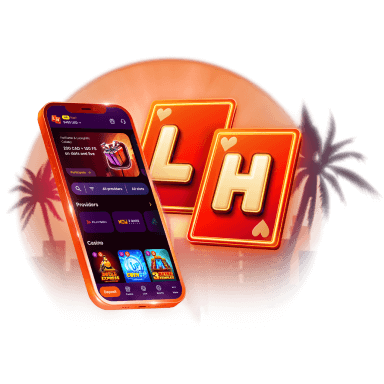
Lucky Hills is always with you!
Install the application and participate in thePlay with the App promo.
We use innovative installation technology directly from the browser. For any operating system.